How to Verify a Dental Practice’s Google Business Profile
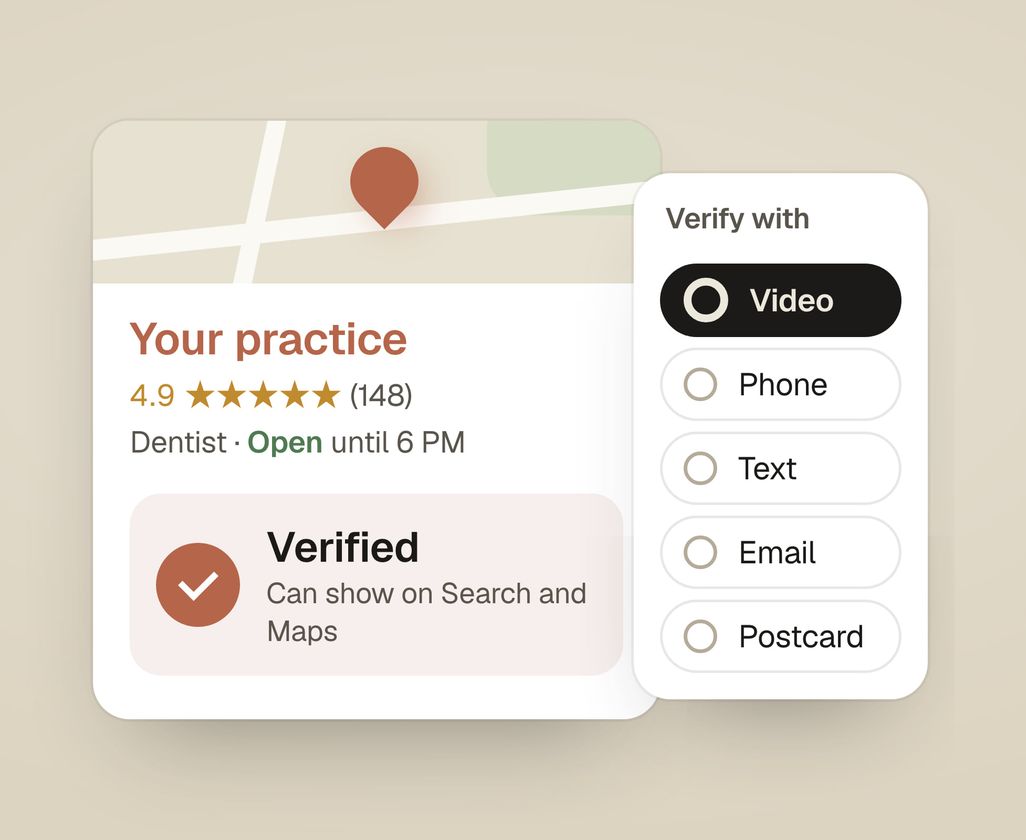
To verify your Google Business Profile, sign in to the Google account that manages it, open the profile, and select Get verified. Google then offers a method (usually a recorded video, a live video call, phone, text, email, or a mailed postcard) and you follow the prompts it gives for your practice.
What does verifying a Google Business Profile actually mean?
Verifying a Google Business Profile is the step where Google confirms you’re genuinely connected to the practice you claimed. Until you pass it, your edits may not show to the public. Your profile usually won’t show in Google Maps results either.
Your Google Business Profile is the free listing that shows your practice name, hours, phone, reviews, and map pin when a patient searches for you. Anyone can claim a listing, so Google needs proof before it trusts the changes you make. It’s normally a one-time step, though Google can ask you to re-verify if something important changes, like your address or category.
What you need before you start
Have three things ready: the right Google account, your exact practice details, and whatever the method needs (a phone that can receive a text, or time in the office to record a short video).
- A Google account the practice owns. Use a practice email address, not the office manager’s personal Gmail and not an agency’s account. Whoever holds this account owns the listing, and getting it back from someone who has left is painful. Staff and agencies can be added as managers later.
- Consistent practice details. The name, address (including the suite number), and phone number should match your sign, your website, and your other listings. Mismatches are the top reason verification stalls.
- Access to the office. Video verification asks you to show the place, so plan to be on-site.
The steps to verify your profile
The exact wording on your screen may differ slightly, but the sequence is the same.
- Sign in to the right Google account. Go to google.com/business and sign in with the practice’s account. If you’re signed into a personal account you don’t want tied to the practice, switch accounts first.
- Find or add your practice. Search for your practice name. If the profile already exists, select it to claim it. If nothing comes up, choose to add your business and fill in the name, category, address, and phone number exactly as they should appear.
- Start verification. Once the profile is selected, look for the Get verified button (you may see it in the profile dashboard, in Search, or in the Maps app under your listing). Select it to begin.
- See which methods Google offers you. Google shows the options available for your specific listing: commonly a recorded video, a live video call, phone call, text message, email, or a mailed postcard. You can only pick from what Google presents; not every method is offered to every business.
- Complete the method you chose.
- Recorded video: follow the prompts to film one video with no cuts. Show the outside of the building and your sign, then the inside of the office. Then show something that proves you manage it, like your keys or a back-office room. Upload it when done.
- Live video call: join a scheduled call and show the same kinds of proof to a Google reviewer in real time.
- Phone or text: enter the code Google reads out or texts to the practice number.
- Email: click the code or link Google sends to the practice email.
- Postcard: wait for a postcard with a code to arrive by mail, then enter that code in your profile.
- Wait for the result and check back. Some methods confirm in minutes; video and postcard can take up to about five business days while Google reviews them. Watch for an email from Google, and check your profile. It will say you’re verified, ask for more proof, or say why it was rejected.
- If it’s rejected, fix and retry. Usually it means the footage didn’t clearly show the location, the details didn’t match, or the category looked off. Correct the issue and request verification again. You can appeal or resubmit.
Why video verification is now so common
If Google asks you to record a video, that’s normal. It has become Google’s default method for many businesses because it’s harder to fake than a postcard or phone code. The video proves the office physically exists and that the person filming has real access to it.
A brand-new listing is especially likely to be pushed toward video. Film in daylight, keep the camera steady, and show your sign and practice name clearly. A vague or dark clip is the usual reason a video gets bounced. Keep the recording in case you need to resubmit.
How long verification takes
Verification can take anywhere from a few minutes to roughly five business days. Phone, text, and email codes are usually instant. A recorded video or live call is typically reviewed within a few days. A mailed postcard depends on the mail, often five business days or more.
If the standard window passes with no answer, don’t keep starting fresh attempts, as that can slow things further. Check the profile status and, if needed, contact Google Business Profile support through the help option inside your profile.
Verifying a dental practice: what to watch for
A practice is a fixed office that patients visit, so expect Google to ask for proof of the office itself.
- Film the sign with the exact name. A common rejection is a sign that says, e.g., “Dr. Patel Family Dentistry” while the profile says “Patel Dental Care”. Google’s reviewer matches the two. Change the profile name to match the sign. Never add a city or a keyword to the name to rank better. A name like “Best Dentist in Austin” gets the listing suspended.
- Show the inside as well as the door. That means the front desk, an operatory, and something with the practice’s name on it, such as letterhead, a branded appointment card, or the license on the wall. One continuous take, steady.
- Keep patients out of the shot. Film before or after patient hours, with no patients, charts, or screens showing patient information in frame, since the video is sent to Google.
- Shared buildings need a landmark. A practice on the second floor of a medical office building should film the building entrance and the lobby directory too, so the reviewer can place the pin. If the pin sits on the wrong building after verification, fix it right away; a wrong pin is a common reason a listing never reaches the map.
- Several dentists, several listings. Google allows a separate listing for each dentist who sees patients. Many dentists already have one that a patient or Google created. In a group practice, claim and verify those from the practice’s account too, with the dentist added as an owner or manager, so they don’t sit unmanaged. Our Google Business Profile checklist for dental practices covers how to set them up, along with every other part of your listing.
How we help with your listing
Verification only makes the listing visible. Where it shows on Google Maps depends on the rest of the listing, such as categories, treatments, photos, and reviews. Our Google Business Profile service covers that work, inside your practice’s own Google account.
The audit compares your listing with the top three practices near you on Google, and shows what to fix first. Get my practice audit.