How to Get a Google Review Link for Your Dental Practice
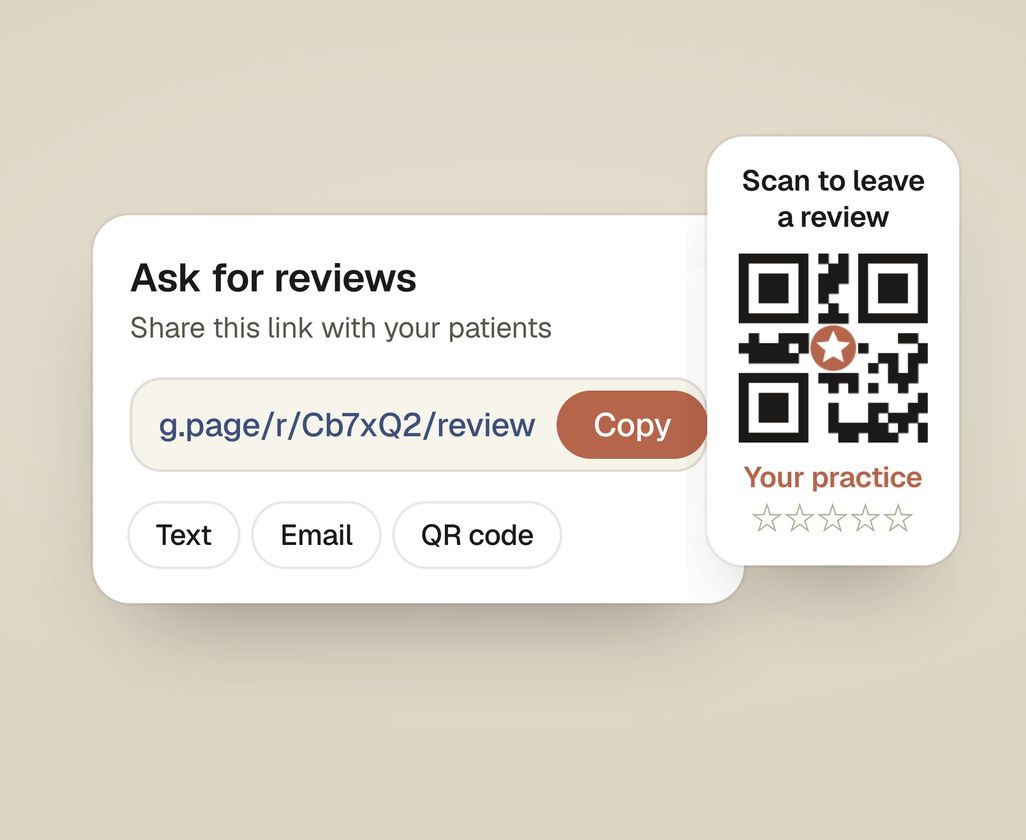
To get your Google review link, sign in to the Google account that owns your Business Profile, search your practice name or “my business” on Google, and click Ask for reviews (or Get more reviews). Google gives you a short link that opens the review box directly. Copy it and share it by text, email, or a printed QR code.
What is a Google review link?
A Google review link is a short web address that takes a patient straight to the “Rate and review” box for your practice, with the star selector already open. Without it, a patient has to search your name, find the right listing, scroll, and look for the review button. With it, they tap once and the review box opens.
Each extra step is another chance for a busy patient to give up before writing the review. Reviews are one of the biggest things Google looks at when deciding who gets found in local search and on Google Maps. The link is free and part of your Google Business Profile. It stays the same unless the listing is rebuilt or merged.
How do you get your Google review link, step by step?
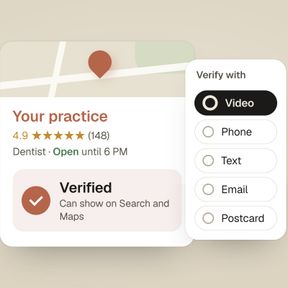
Getting the link takes under a minute once your profile is verified. These steps use the Google interface as of 2026.
- Sign in to the Google account that owns your Business Profile. This must be the account used to claim the listing. If a former office manager or an agency set it up, find out which account has access.
- Open your Business Profile. On a computer, search your exact practice name on Google, or type
my businessinto Google Search while signed in. Your profile management panel appears at the top of the results. On a phone, open the Google Maps app, tap your profile picture, and choose Your Business Profile. - Find the “Ask for reviews” option. In the profile panel you’ll see a button labeled Ask for reviews or Get more reviews. Click or tap it.
- Copy the short link Google shows you. A share panel opens with a ready-made review link (it usually looks like
g.page/r/…followed by/review, or ashare.googleaddress). Click Copy. - Put it where the front desk will use it. Save it as a text message template the front desk sends on the day of the visit. Also add it to your post-visit email, your appointment follow-ups, and a button on your website. It’s the same link everywhere.
- Test it once yourself. Open the link in a browser where you’re signed in as a normal user (not the practice account). It should open the star-rating box for your practice. If it does, it’s working.
The link stays the same every time, so you only create it once. Save it where the whole front desk can find it.
If your dentists have their own listings, each listing has its own review link. Decide which one the front desk sends (usually the main practice listing) and use it every time, so reviews don’t scatter across several listings by accident.
How many reviews does a dental practice need?
There is no fixed number, but you can see the bar in your own area. On 11 October 2026 we looked at Google’s local results for “dentist in Plano TX” and “dentist in Frisco TX”, about 170 practices in all.
- Almost every practice had 4.8 to 5.0 stars. The median was 4.9 in the top 10 and 4.9 from #21 down. A high rating no longer sets a practice apart.
- Review count did. The top 10 had a median of about 500 reviews in both cities. Practices from #21 down had about 280 in Plano and 320 in Frisco.
- Reviews alone didn’t win. In Plano, a practice with about 1,300 reviews and 4.9 stars sat at #17, and one with about 900 sat at #16.
Results also change with where the person searching is standing, so your own top 10 may look different. Treat reviews as the ticket into the race: get close to what the top 10 near you have, then keep a steady flow every week. Our guide on ranking higher on Google Maps covers what else decides the order.
How do you turn the review link into a QR code?
Google gives you a free QR code and printable materials from inside your Business Profile. Look for the marketing kit or Get more reviews materials, where you can download a code and posters that point at your review link. A QR code suits anything physical: a small card at the checkout desk, a sign in the reception area, the back of an appointment card.
If you’d rather make the QR code yourself, any reputable free QR generator will turn your review link into a scannable code. Point it at the link from the steps above, and test it with your own phone before printing.
How do you build the link manually from your Place ID?
If you want a permanent link you control (for example, one hard-coded into a website button), build it from your Place ID using this format: https://search.google.com/local/writereview?placeid=YOUR_PLACE_ID. Replace YOUR_PLACE_ID with your listing’s Place ID, a unique code Google assigns to every listing.
To find your Place ID, use Google’s free Place ID Finder tool (part of the Google Maps Platform documentation): search your practice name and it returns a string that starts with ChIJ…. Put that code into the address above. You now have a review link that doesn’t depend on the buttons in your Google dashboard. Test it once a year to make sure it still works.
What are the rules for sending the link?
Send it to every patient, the same way. Two rules matter most:
- Never offer anything in exchange for a review, such as a discount or a gift card. Google prohibits incentivized reviews and can penalize your listing for it.
- Never send it only to the patients you expect to be happy. Selective asking is called review gating, and Google’s policy forbids it.
Our guide on how to ask patients for Google reviews has the words to use in the chair, at checkout, and by text. Our guide on how to respond to Google reviews covers how to answer reviews when they arrive.
How we help with reviews
On our Google Business Profile service, we set up your review link, a card for the front desk, and the text patients get after a visit. We also answer every review.
The audit compares how many reviews you have, and how recent they are, with the top three practices near you on Google. It shows what to fix first. Get my practice audit.